

1. Prerequisites Before Connecting Zoom
•
Please prepare your Zoom Account (available for both paid and free plans) that you intend to link with Mindism.
•
You must have accurate knowledge of your Zoom account email and password.
2. How to Connect Your Zoom Account
1.
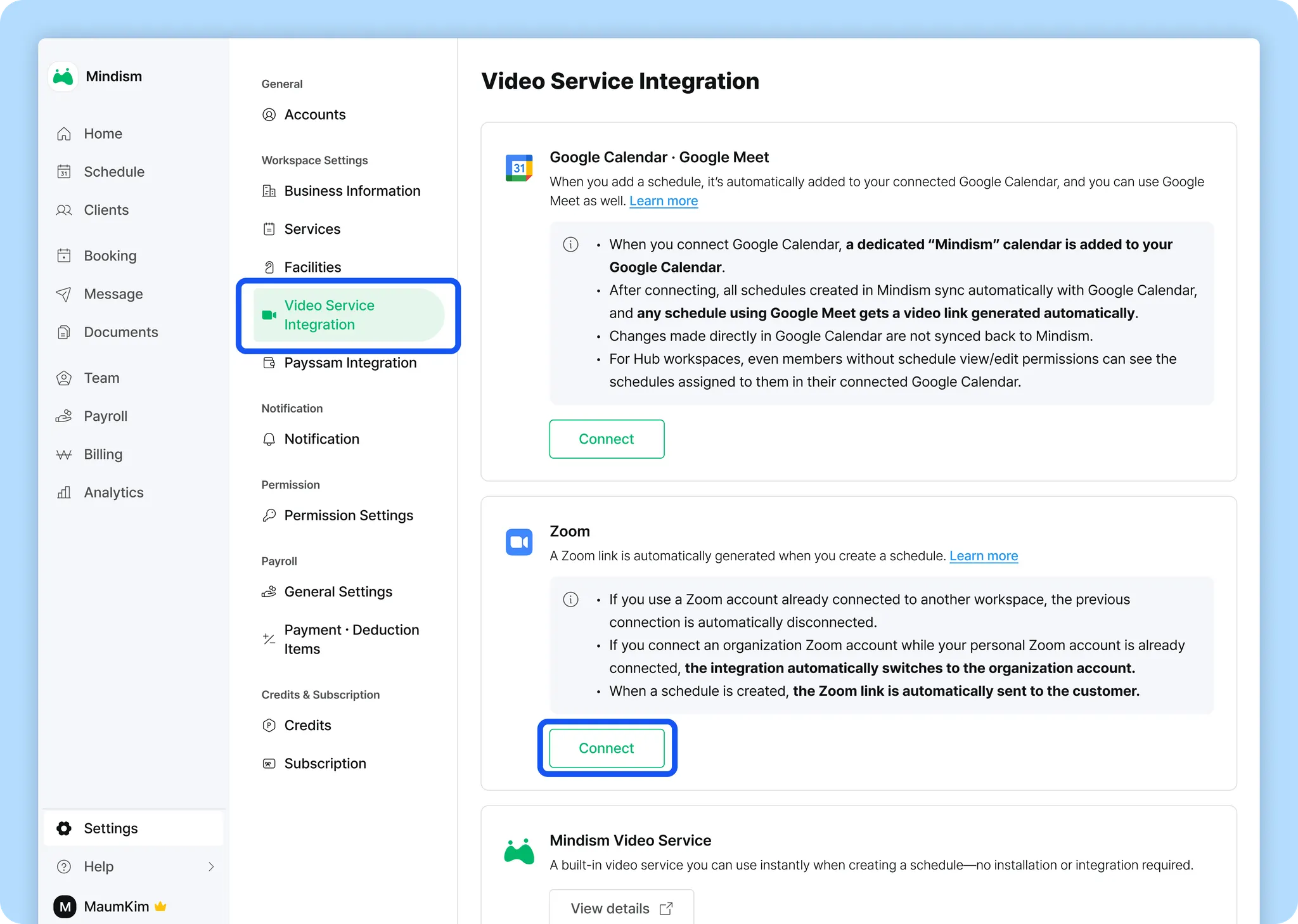
Go to the [Settings] menu and select [Video Service Integration].
2.
Click the “Connect” button in the Zoom section.
3.
You will be redirected to the Zoom login page. Log in with the account you wish to connect, and then click the 'Authorize' button to grant Mindism access to manage your scheduling.
4.
Once connected, your linked Zoom account email will be displayed on the Mindism settings screen.
3. Utilizing Zoom Features (Online Booking & Meeting Automation)
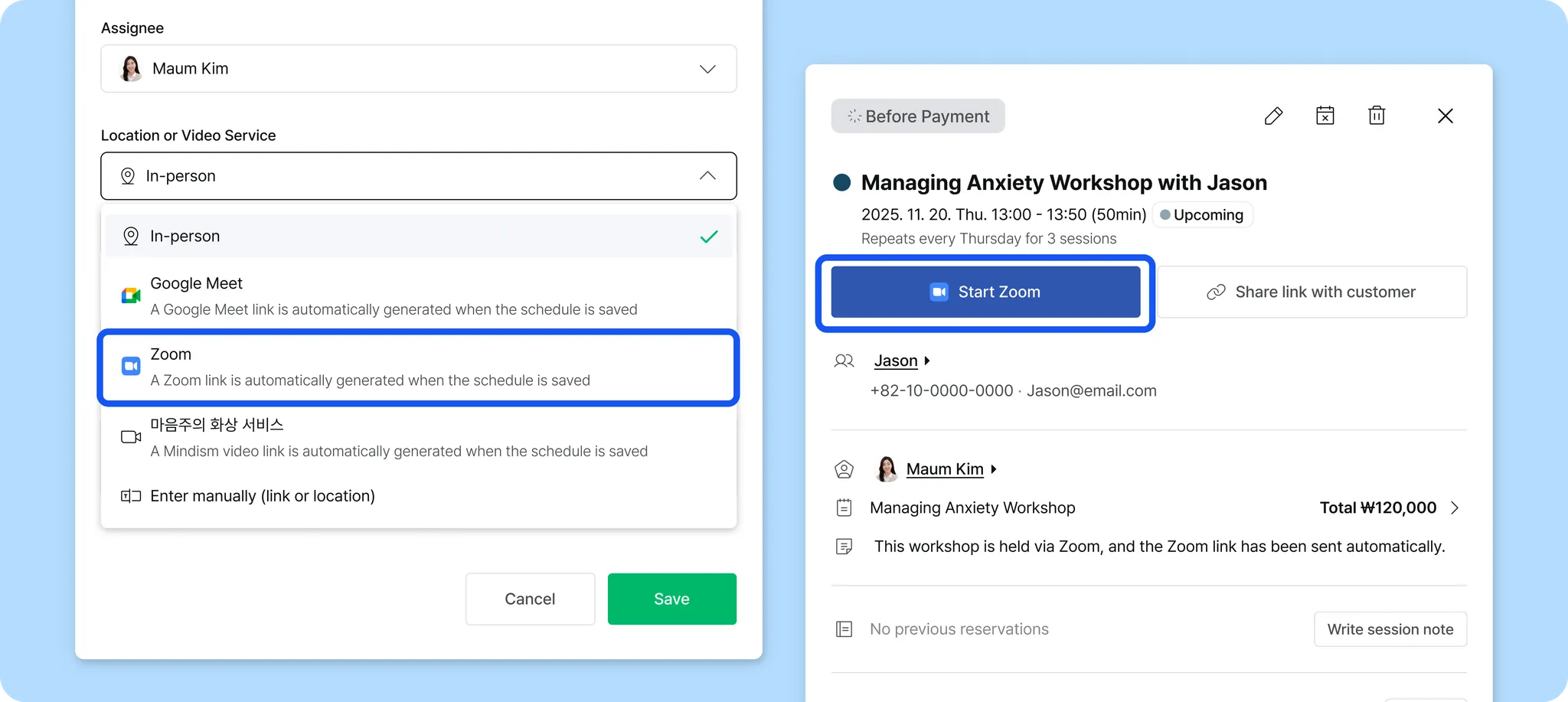
Once the Zoom integration is complete, a Zoom meeting will be automatically set up whenever a video service schedule is created or booked within Mindism.
•
Automatic Meeting Link Generation: When you create an 'Online Meeting' in Mindism's [Schedule Management] or a client confirms a booking, a unique Zoom meeting link will be automatically generated and attached to that schedule.
•
Automated Notification: Notifications containing the generated Zoom meeting link and time will be automatically sent to both the client and the expert via SMS or email.
•
Schedule Conflict Prevention: The Mindism system verifies Zoom availability in real-time, systematically blocking double-bookings that overlap with existing Zoom meetings.
4. How to Disconnect Zoom Integration (Uninstall)
1.
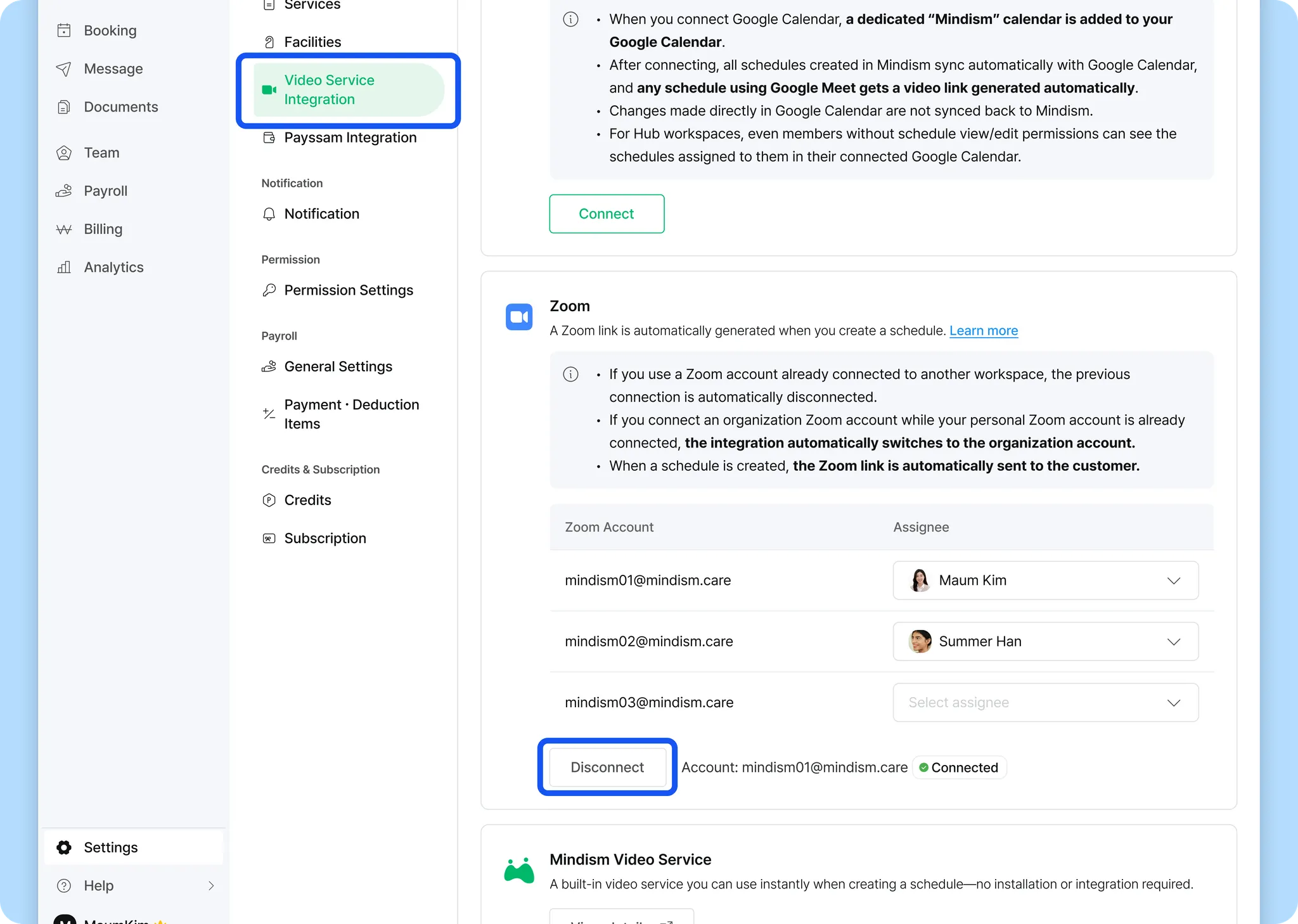
Go to the [Settings] menu and select [Video Service Integration].
2.
In the Zoom section, click the “Disconnect” button.

[ Notes When Disconnecting Zoom]
•
After disconnecting, new schedules will no longer generate Zoom links automatically.
•
Existing schedules will remain in Mindism, and you can still edit or delete them as needed.
•
Previously created Zoom links will no longer be displayed in Mindism.
If there are any meetings you no longer need, please delete them directly in Zoom.
•
If a workspace-level Zoom account is connected in a Hub workspace, only the organization’s Zoom admin can disconnect the integration.